Flow Integration
Once you’ve developed your flow along with testing and deployment, you can integrate it into your application. Lamatic provides a Connect to your project experience in the Studio that gives you instructions to execute flows based on your trigger and implementation methods.
If your application, API, or webhook receiver is behind a firewall, review IP Allowlisting before going live.
Integration checklist
- Confirm deployment: Make sure your latest version of the flow is deployed and passing tests.
- Open the Connect modal: From the flow canvas, click Connect to your project to get the endpoint, IDs, and example code.
- Choose an integration path:
- Use Vibe Code Prompt to generate app-specific code via your AI assistant.
- Use the API tab for raw GraphQL requests (see also API Overview and Integration Guide).
- Use App Frameworks for framework-specific snippets (e.g. Next.js + SDK).
Connect to your project
In the flow editor, use Connect to your project to open a modal that shows integration options for the current flow (e.g. your agent or workflow). The modal includes:
- Open API Playground — Test the API interactively.
- View Docs — Link to full documentation.
You can choose how you want to integrate:
| Tab | Use when |
|---|---|
| Vibe Code Prompt | You want a ready-made prompt to paste into an AI assistant (e.g. Cursor, ChatGPT) to get integration code. |
| API | You want to call the flow via GraphQL from any backend or script (cURL, Node.js, Python, etc.). |
| App Frameworks | You are building with a supported framework (e.g. Next.js) and want framework-specific setup and files. |
Vibe Code Prompt
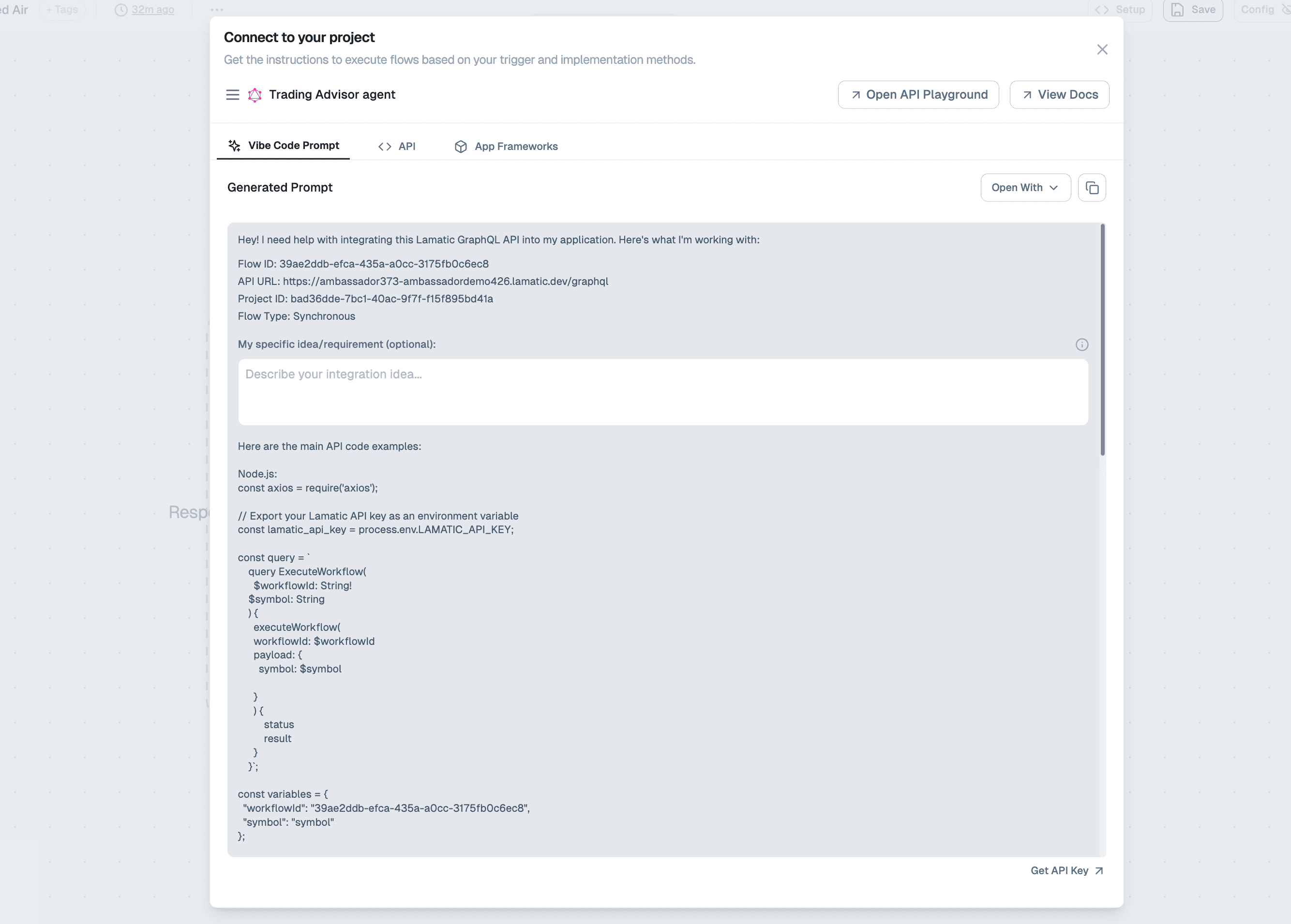
The Vibe Code Prompt tab gives you a generated prompt you can copy and use with an AI coding assistant. It includes:
- Flow ID — Unique identifier for this flow.
- API URL — Your project’s GraphQL endpoint (e.g.
https://<project>.lamatic.dev/graphql). - Project ID — Your project’s identifier.
- Flow type — e.g. Synchronous.
You can optionally add your own integration idea or requirement in the text area. Use Open With or the copy button to paste the prompt into your preferred tool and get tailored integration code.
API integration
The API tab shows the main operations and code examples for calling your flow from code.
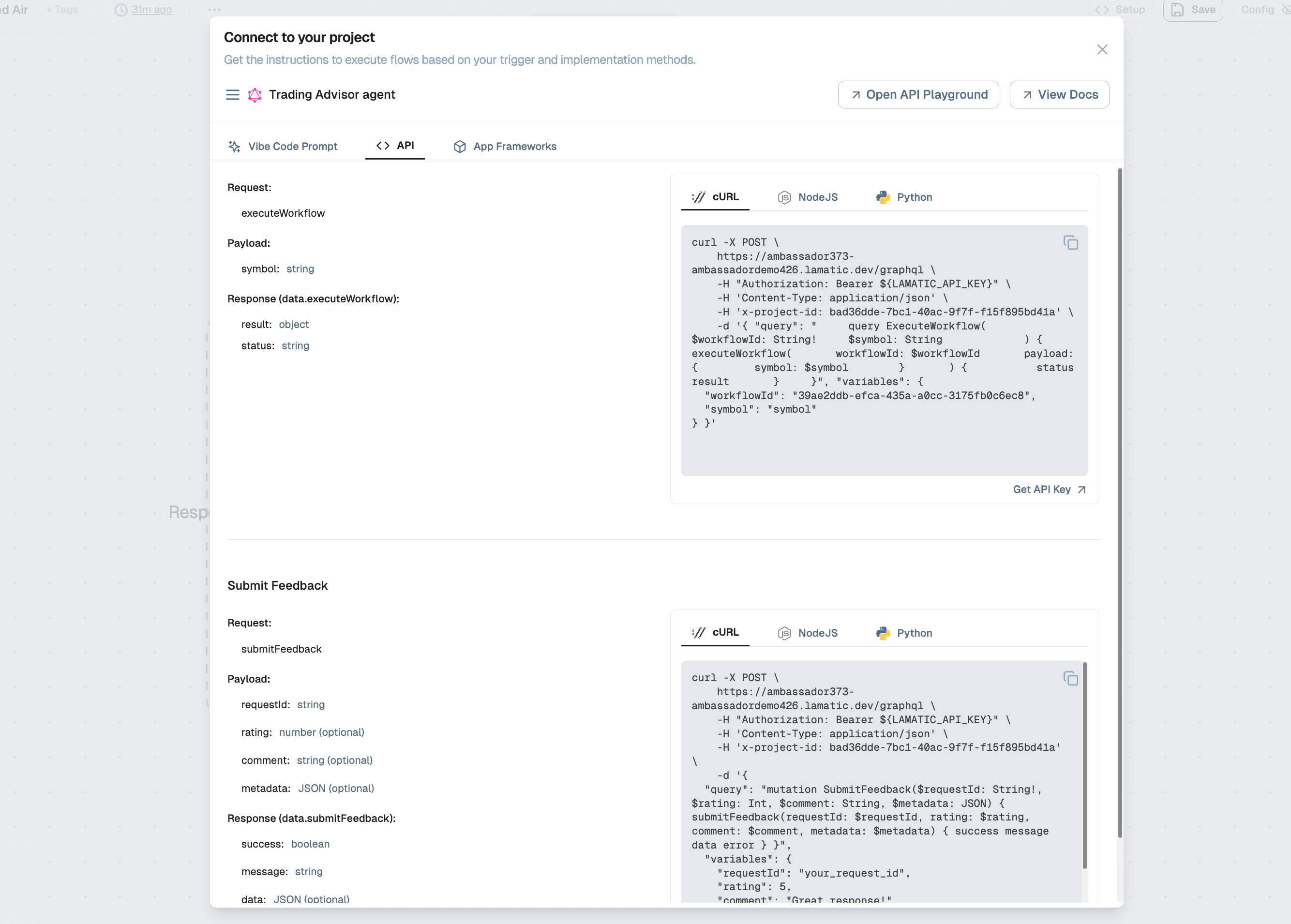
executeWorkflow
Use this to run the flow with a payload.
- Payload: Depends on your flow’s inputs (e.g.
symbol: string). - Response (
data.executeWorkflow):result(object),status(string).
Example (cURL):
curl -X POST "https://<project>.lamatic.dev/graphql" \
  -H "Authorization: Bearer $(LAMATIC_API_KEY)" \
  -H "Content-Type: application/json" \
  -H "x-project-id: <PROJECT_ID>" \
  -d '{
    "query": "query ExecuteWorkflow($workflowId: String!, $symbol: String) { executeWorkflow(workflowId: $workflowId, payload: { symbol: $symbol }) { status result } }",
    "variables": {
      "workflowId": "<FLOW_ID>",
      "symbol": "symbol"
    }
  }'
Example (Node.js):
const axios = require('axios');

// Export your Lamatic API key as an environment variable
const lamatic_api_key = process.env.LAMATIC_API_KEY;

const query = `
  query ExecuteWorkflow($workflowId: String!, $symbol: String) {
    executeWorkflow(workflowId: $workflowId, payload: { symbol: $symbol }) {
      status
      result
    }
  }
`;

const variables = {
  workflowId: "<FLOW_ID>",
  symbol: "symbol"
};

const options = {
  method: 'POST',
  url: process.env.LAMATIC_PROJECT_ENDPOINT,
  headers: {
    'Authorization': `Bearer ${lamatic_api_key}`,
    'Content-Type': 'application/json',
    'x-project-id': process.env.LAMATIC_PROJECT_ID
  },
  data: { query, variables }
};

axios(options)
  .then(response => console.log('Success:', response.data))
  .catch(error => console.error('Error:', error.response?.data || error.message));
Replace <FLOW_ID>, <PROJECT_ID>, and the endpoint with the values from the Connect modal. Get your API key from Studio → Settings → API Keys or the Get API Key link in the modal. See API Overview and API Keys for more.
submitFeedback
Use this to send feedback for a workflow run (e.g. ratings or comments).
- Payload:
requestId(string, required),rating(number, optional),comment(string, optional),metadata(JSON, optional). - Response (
data.submitFeedback):success(boolean),message(string),data(JSON, optional).
Example (cURL):
curl -X POST "https://<project>.lamatic.dev/graphql" \
  -H "Authorization: Bearer $(LAMATIC_API_KEY)" \
  -H "Content-Type: application/json" \
  -H "x-project-id: <PROJECT_ID>" \
  -d '{
    "query": "mutation SubmitFeedback($requestId: String!, $rating: Int, $comment: String, $metadata: JSON) { submitFeedback(requestId: $requestId, rating: $rating, comment: $comment, metadata: $metadata) { success message data error } }",
    "variables": {
      "requestId": "your_request_id",
      "rating": 5,
      "comment": "Great response!"
    }
  }'
App Frameworks
The App Frameworks tab provides framework-specific setup (e.g. Next.js). It typically includes:
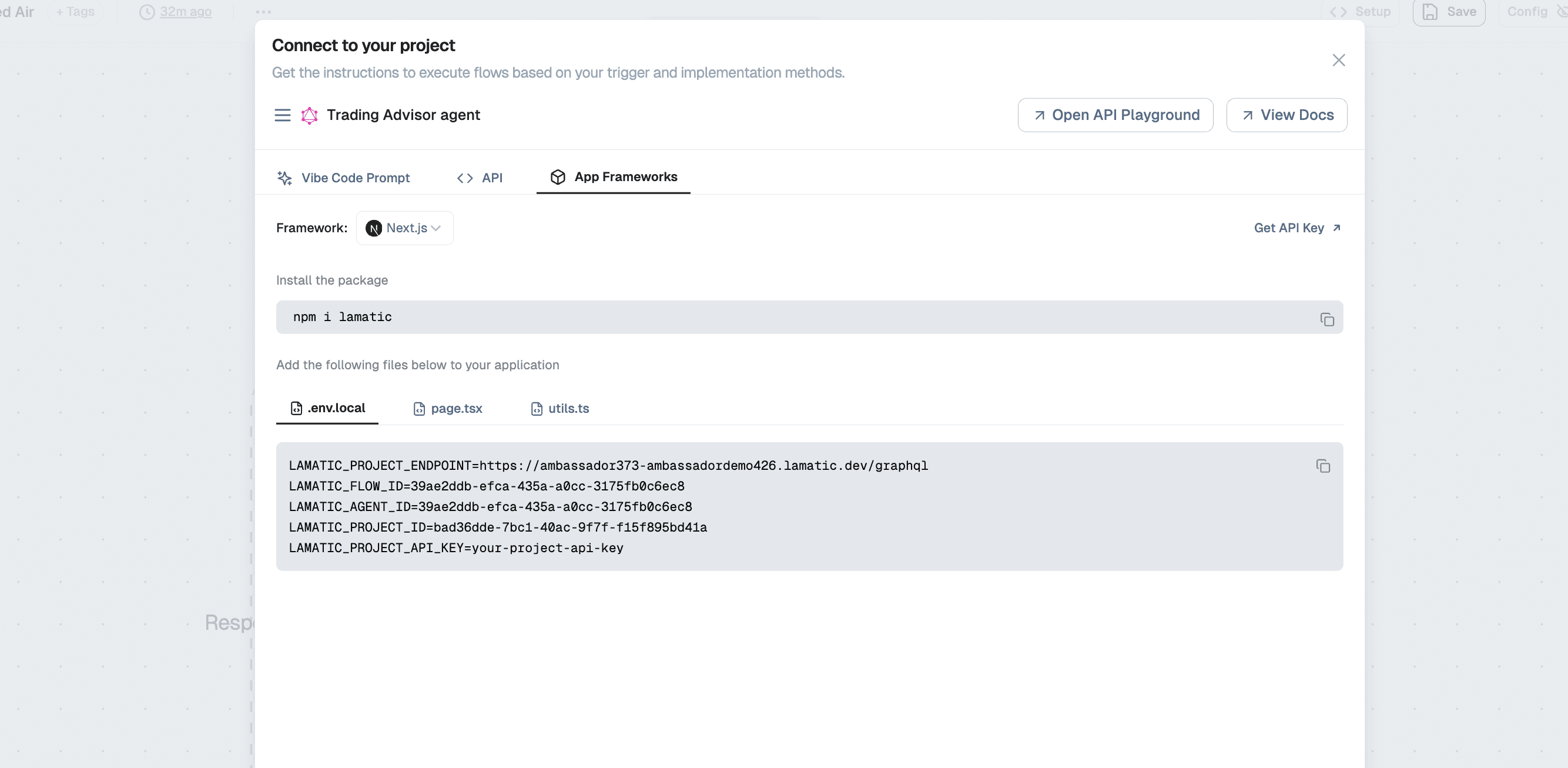
- Install the package — e.g.
npm i lamatic. - Add files to your app — e.g.
.env.local, a page component, and autils(or similar) file.
Environment variables
Add the following to .env.local (or your framework’s env file), using values from the Connect modal:
LAMATIC_PROJECT_ENDPOINT=https://<project>.lamatic.dev/graphql
LAMATIC_FLOW_ID=<FLOW_ID>
LAMATIC_PROJECT_ID=<PROJECT_ID>
LAMATIC_PROJECT_API_KEY=your-project-api-key
Replace your-project-api-key with your actual API key from Get API Key in the modal or from Studio → Settings → API Keys.
Next steps
- Copy the generated page and utils snippets from the App Frameworks tab into your app.
- Ensure the payload you send matches your flow’s input schema (e.g. required fields like
symbol). - For more API details, see API Overview and Integration Guide.