Gmail AI Summarizer
This use case can be implemented with Gmail and N8N integrations. We’re covering Gmail integration here; for N8N integration, see AI Email Summarizer.
This guide will walk you through building an AI-powered email summarization tool. The system automatically processes incoming emails from Gmail, and generates concise summaries using a Large Language Model (LLM), allowing you to quickly understand important information.
What You’ll Build
A simple automation that triggers when a new email arrives in Gmail, processes the email content using an AI model, and generates a summary. This enables efficient email management by allowing users to quickly understand important details without reading lengthy messages.
Getting Started
1. Project Setup
- Sign up at Lamatic.ai and log in.
- Navigate to the Projects and click New Project or select your desired project.
- You’ll see different sections like Flows, Context, and Connections
2. Creating a New Flow
- Navigate to Flows, select New Flow.
- Click Create from scratch to start with a blank canvas.
3. Setting Up the Gmail Trigger
-
Click “Choose a Trigger” or the + button.
-
Search for and select Gmail under the App nodes.
-
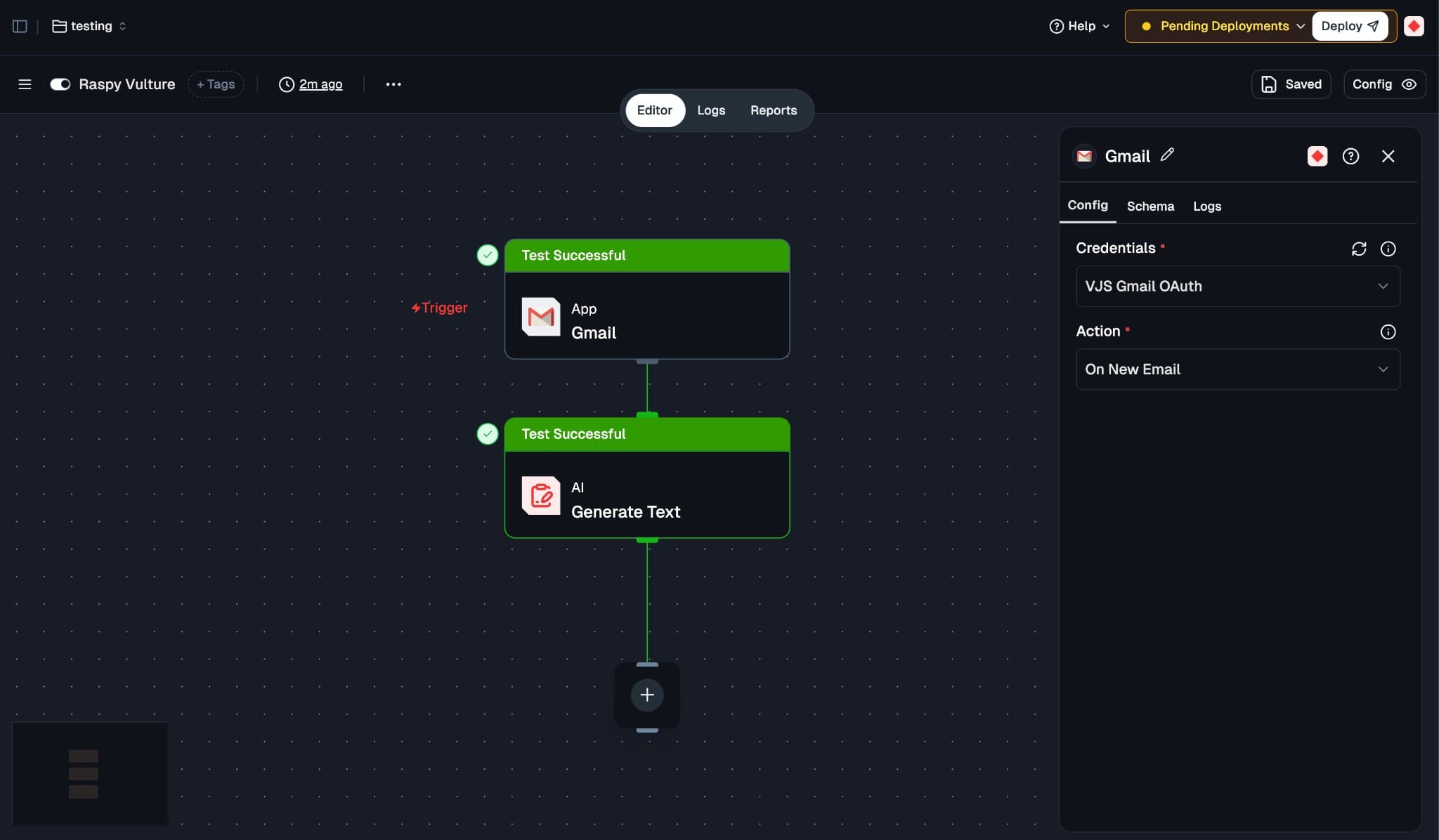
Configure the Gmail node:
- Credentials: Select your Gmail OAuth credentials (or create new ones).
- Action: Select On New Email.
4. Adding AI Text Generation
-
Click the + icon below the Gmail node to add a new step.
-
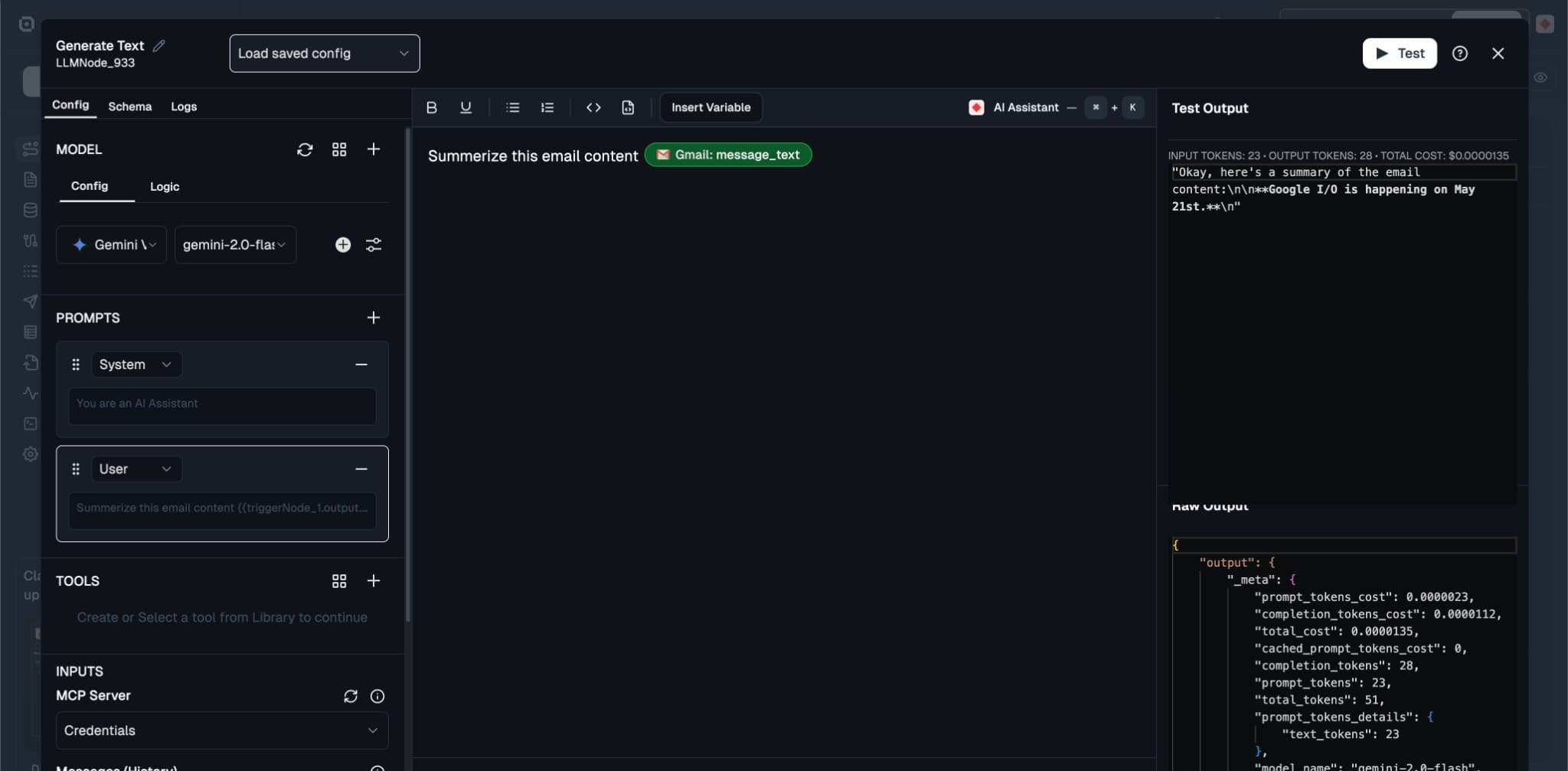
Choose Generate Text (Text LLM).
-
Configure the AI model:
- Model: Select a model (e.g., Gemini 2.0 Flash, GPT-4o).
- Prompt: Enter a prompt to summarize the email. For example:
Summarize this email content - Input: Insert the variable containing the email body. Click “Insert Variable” and select
message_textfrom the Gmail node output.
5. Final Flow Overview
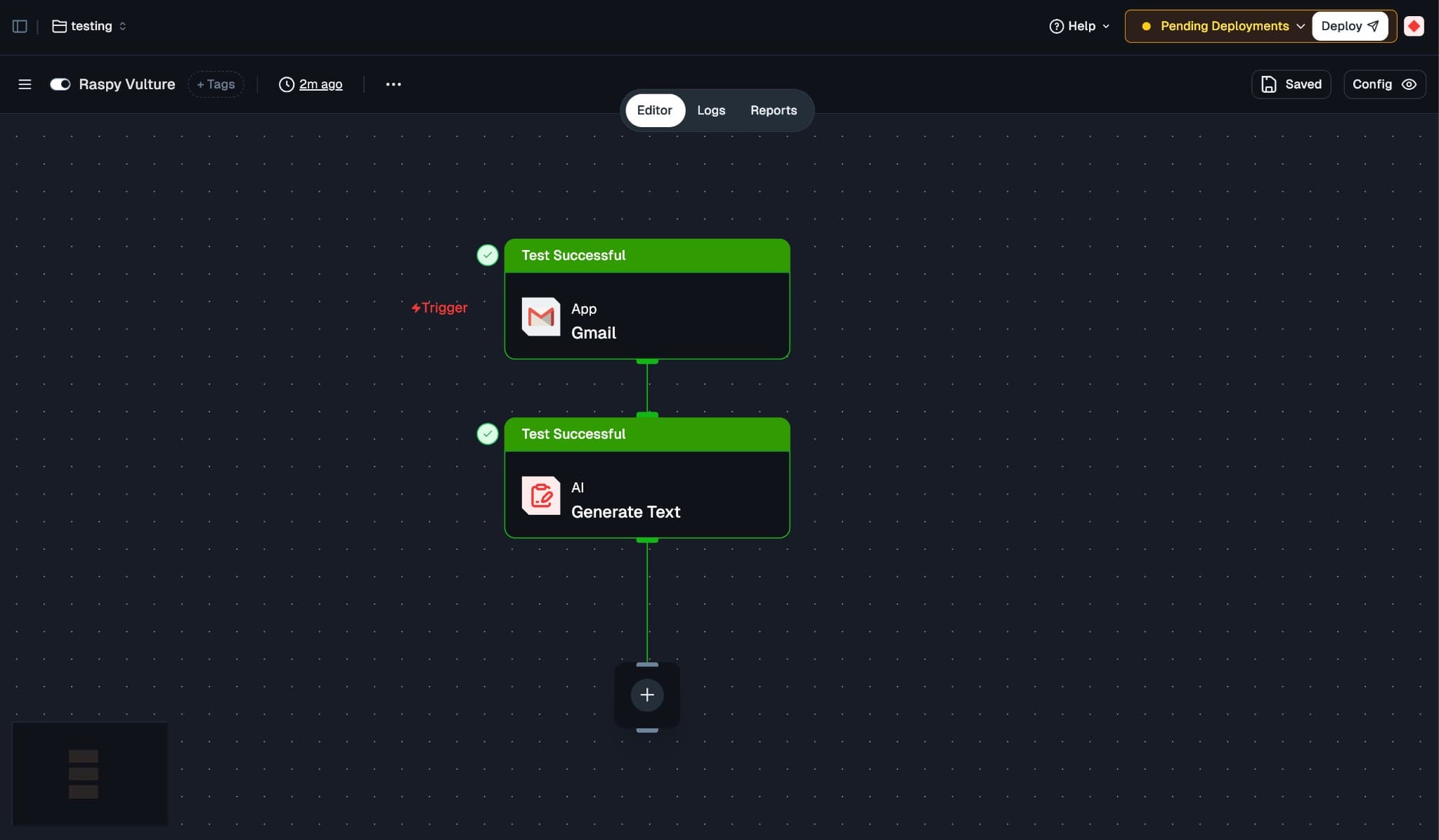
Your flow should look like this:
- Gmail Trigger: Listens for new emails.
- Generate Text: Summarizes the email content.
6. Test the Flow
- Click Test on the Gmail node to fetch a sample email.
- Click Test on the Generate Text node to see the summary generated from the sample email.
7. Deployment
- Click the Deploy button in the top right corner.
- Your flow is now live! It will automatically summarize new emails as they arrive.
8. What’s Next?
- Send the Summary: Add another node (e.g., Slack, Email, or Notion) to send the generated summary to your preferred channel.
- Filter Emails: Add logic to only summarize emails from specific senders or with specific subjects.
- Experiment with Prompts: Refine the prompt to extract specific action items or formatting.
Now you have a working AI-powered email summarizer!